Users & Roles
The user management section (/users) is the heart of the admin backend. All end users are created, configured, and monitored here.
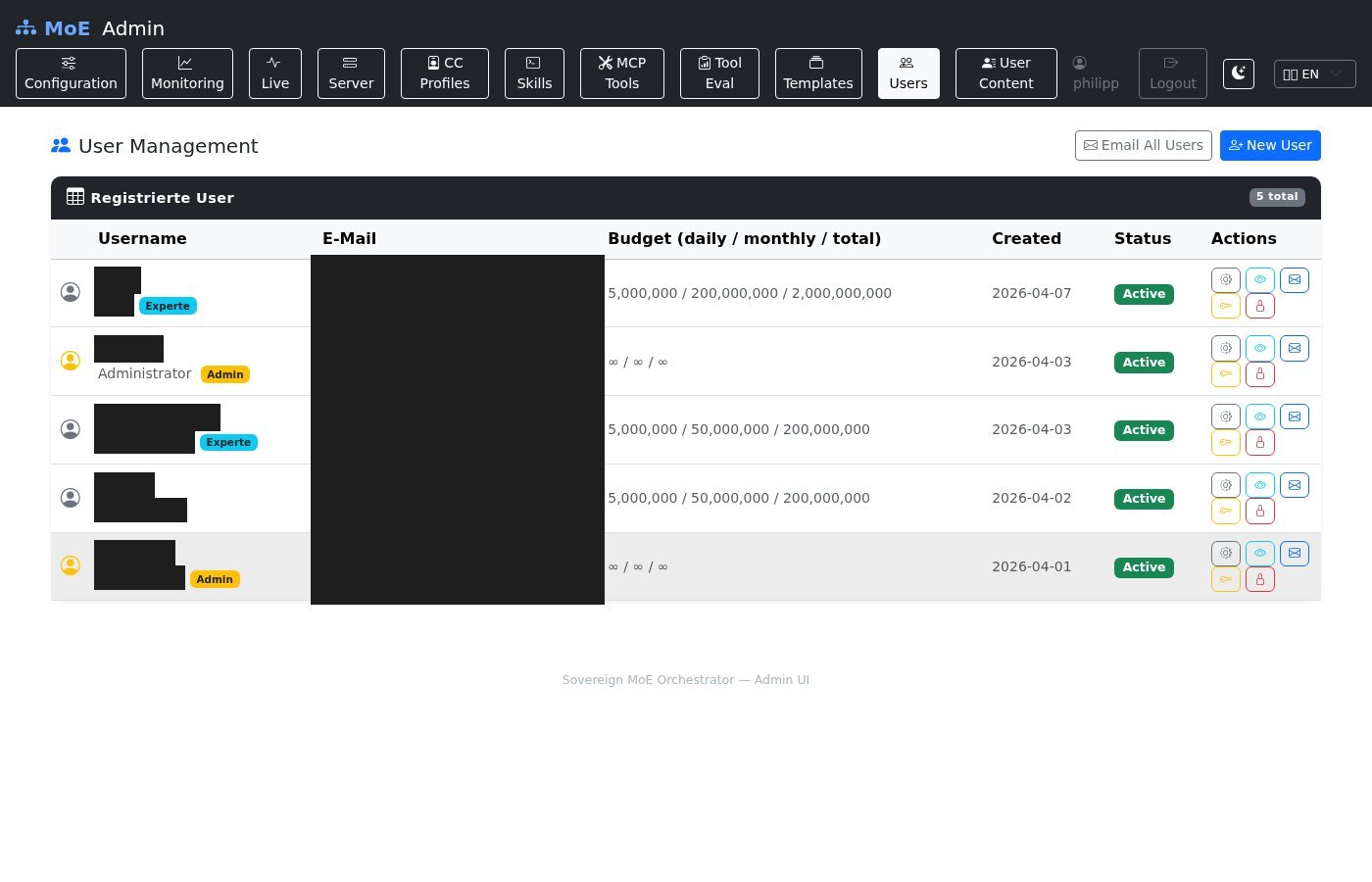
User Table
The overview shows all registered users with:
- Username and display name
- Email address
- Role (colored badge)
- Status (Active / Suspended)
- Creation date
- Actions: Edit, Suspend/Activate, Impersonate, Delete
Roles
| Role | Description | Capabilities |
|---|---|---|
user |
Standard end user | Can use dashboard, billing, keys |
subscriber |
Subscriber | Can use assigned expert templates |
expert |
Expert | Can create own templates and CC profiles |
admin |
Administrator | Full access to all functions |
Role Assignment
A user's role can be changed in the edit dialog (Tab Budget) via the dropdown in the top left. A role change is saved immediately.
Creating a User
The + Create User button opens a modal with:
| Field | Required | Description |
|---|---|---|
| Username | ✓ | Unique login name (a-z, 0-9, -, _) |
| ✓ | For password reset and budget alerts | |
| Display Name | – | Friendly name for the UI |
| Password | ✓ | Minimum 8 characters |
| Role | ✓ | Initial role (default: user) |
| Daily Limit | – | Token budget per day |
| Monthly Limit | – | Token budget per month |
| Total Limit | – | Lifetime budget |
After creation, a welcome email with login credentials can optionally be sent (requires SMTP configuration).
Editing a User – Edit Dialog
Clicking on a user opens the edit modal with four tabs:
Tab: Budget
Contains the role selector and the suspend/activate button at the top.
Fields:
| Field | Description |
|---|---|
| Daily Limit | Max tokens per day (empty = unlimited) |
| Monthly Limit | Max tokens per month (empty = unlimited) |
| Total Limit | Cumulative lifetime limit (empty = unlimited) |
| Budget Type | Subscription (monthly reset) or One-time (no reset) |
Current usage is displayed directly below (Today / Month / Total with EUR estimate).
Tab: Permissions
Explicit resource permissions for the user are managed here. See Permissions for details.
Tab: API Keys
Shows all API keys for the user with:
- Prefix (first 16 characters of the key)
- Label (assigned by user)
- Last used
- Status (Active / Suspended)
- Suspend button
New keys can be created directly by the admin here. The full key is displayed once.
Tab: Usage
Statistics cards: - Tokens today / this month / total - Download link for detailed JSON data (last 30 days)
Suspending / Activating a User
- Suspend: Sets
is_active = 0, immediately invalidates the Valkey cache. - Activate: Sets
is_active = 1, user can log in again immediately.
Suspended Users
Suspended users can no longer log in and their API keys will be rejected. Existing sessions expire.
Admin Impersonation
Via the Impersonate button (eye icon), an admin can take over a user's session:
- Admin clicks Impersonate → is redirected to
/admin/users/{uid}/impersonate - The User Portal opens with an orange notice banner: "You are logged in as [Username] (Admin Impersonation)"
- End: Click End Impersonation → back to admin account
Password Reset by Admin
In the edit dialog, an admin can directly reset a user's password without going through the email flow.
Database Fields
CREATE TABLE users (
    id            TEXT PRIMARY KEY,    -- UUID4 hex
    username      TEXT UNIQUE NOT NULL,
    email         TEXT UNIQUE,
    display_name  TEXT,
    hashed_password TEXT,              -- bcrypt via passlib
    is_active     INTEGER DEFAULT 1,  -- 1=active, 0=suspended
    is_admin      INTEGER DEFAULT 0,
    role          TEXT DEFAULT 'user',
    created_at    TEXT NOT NULL,       -- ISO-8601 UTC
    updated_at    TEXT NOT NULL,
    alert_enabled        INTEGER DEFAULT 0,
    alert_threshold_pct  INTEGER DEFAULT 80,
    alert_email          TEXT,
    last_alert_sent_at   TEXT,
    timezone_offset_hours REAL DEFAULT 0
);
Default Admin
On first start, an admin account is automatically created:
| Field | Default Value | Env Variable |
|---|---|---|
| Username | admin |
ADMIN_USER |
| Password | changeme |
ADMIN_PASSWORD |
Important
The default password must be changed on first login.